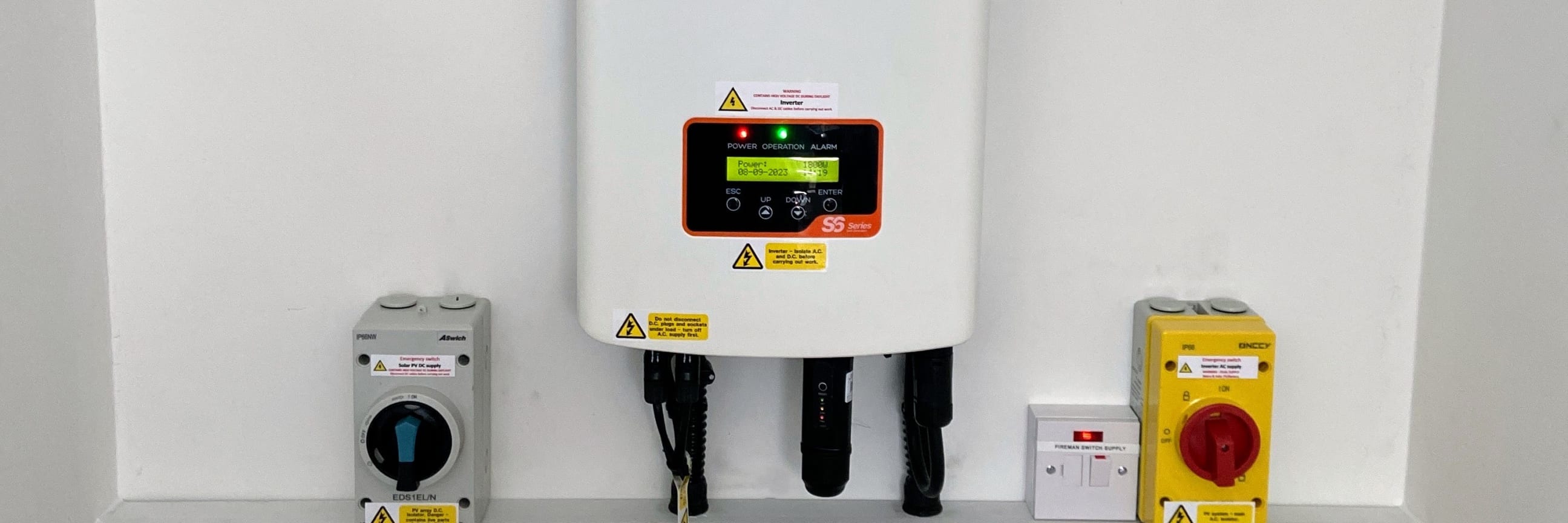
Solis firmware update may reset your settings
Why did my battery charging schedule suddenly stop working?
If your battery suddenly stopped charging at the times you expect, and you have not changed any settings yourself, a likely cause is a firmware update sent out by Solis. Firmware is the software that runs inside the inverter. These updates can improve how your system works, but they can also return some settings to how they were when the inverter left the factory. This does not mean your battery or inverter is faulty.
If your system has previously been set up to accept updates from Solis, further updates may be sent without asking you again. In some cases, this resets the settings that were configured for your home back to a standard default. This page explains why it happens, what to look for, and how to put things right.
Common symptoms after a firmware reset
If your settings have been reset by a firmware update, you may notice one or more of these changes:
The time windows you previously set for battery charging are no longer there, or the schedule no longer matches what you expect.
The inverter is no longer pulling power from the grid during your cheap-rate window, even though the schedule was working before.
Your preferred operating mode has gone back to the standard factory setting, rather than the one chosen for your home.
The app shows your inverter is connected, but the battery charging schedule appears empty or reset.
The inverter and battery are working fine, but the small device that sends your system's data to the internet (the datalogger) has stopped reporting. The inverter display will still show the system working normally.
Why this happens
Solis systems can accept updates sent remotely once this has been authorised in SolisCloud, or when your system was originally set up. Once that permission is in place, Solis may send out fixes or improvements automatically without asking you again.
A firmware update can change the inverter's internal setup, and may return some menus to their standard factory values. This does not mean the battery or inverter is faulty. It simply means the schedule or settings that were configured for your home have been overwritten by the update.
This is not unique to Solis. Many smart devices can lose custom settings during firmware updates. The important thing is knowing how to check and restore them.
What to check first
Always trust the inverter display first
The SolisCloud app is a handy window on your system, but it is not always live. It can lag, or show your inverter as offline, even when everything is working perfectly. The one thing that always tells the truth is the display on the inverter itself. It shows whether the inverter is running, whether the battery is connected and charging, and any error codes or alarms.
If the app looks wrong, the best first step is to walk over to the inverter and read its screen. If the display looks normal, your system is almost certainly fine. It is usually just the app or the datalogger that is out of sync.
Before changing anything, work through these checks in order. They will help you confirm whether a firmware reset is the cause:
- Check the inverter display: walk to the inverter and read its screen. Normal generation and battery status on the display means the system is working, even if the app disagrees. Note down any error codes it shows.
- Confirm the inverter is online in SolisCloud: open the SolisCloud app and check that your inverter is showing as connected.
- Check whether you recently authorised an update: did you tap "Allow" on any Solis software or firmware update prompts in the app recently?
- Check the inverter clock: look at the time shown on the inverter screen and confirm it is correct. An incorrect clock can cause the schedule to run at the wrong times.
- Check the battery charge schedule: look in the inverter menus or SolisCloud and see if your charge and discharge time windows are still there.
If the schedule is empty, missing, or clearly wrong compared to what you remember setting, proceed to restore your settings below.
How to restore your settings
Restoring your battery charging schedule depends on how you normally manage it:
If you change settings on the inverter itself
Use our step-by-step guide to changing battery timing directly on the inverter:
Change battery timing on your Solis inverter
If you change settings through the SolisCloud app
Note: Changing battery schedules through the app requires a permission level Solis calls "End User Access". If Solis has granted you that access, re-enter your preferred charge and discharge times, and make sure your cheap-rate hours match your electricity tariff.
If you cannot find these settings in your app, your account is likely set to Basic/View-Only access. In this case, you will need to either:
- Update the settings directly on your physical inverter (see the guide above).
- Contact your solar installer to request they update the schedule remotely or grant you elevated access.
Also confirm these settings after restoring your schedule
- Storage mode is still set to your preferred option (for example, Time of Use or Self Use).
- Charge and discharge limits are still correct for your installed battery.
- Grid charge permissions are still set to Allow if your schedule needs to charge from the grid.
Recommended routine: a quick monthly check
It is a good habit to check your system briefly after a firmware update, especially if you are on a schedule-based charging plan where timing matters. The routine below takes less than a minute a month and helps catch silent resets early, avoiding the confusion of unexpectedly higher bills.
Open the app and have a quick look at the dashboard. You do not need to study anything, just confirm it looks normal.
Pick a day when your cheap-rate window applies and check that the battery charged as expected overnight or during the day.
Open the charge schedule menu in SolisCloud or on the inverter. If it is empty or clearly wrong, you know a reset has happened and you can restore it.
If the app looks odd, or you simply want to be sure, walk to the inverter and check its screen. The display shows what is really happening. It tells you whether the inverter and battery are actually working.
Need a hand?
If you have checked your settings and something still does not look right, get in touch with your installation team at PureVolt Solar. We can check your inverter remotely and restore your settings for you. Let us know what symptoms you are seeing and whether you recently noticed a firmware update.
You might also find these guides useful:
- Change battery timing — how to adjust your battery charge schedule on the inverter.
- Solis fault codes explained — what each code means and what to check.
- Change WiFi on Solis inverter — reconnect your inverter to your home WiFi.